 MEIKAI
Overview
The Meikai AI Visibility Checker audits the page you have open and reports how AI crawlers and shopping agents can reach and read it. It applies the same issue model as Meikai Site Scanner, one page at a time, in your browser. The audit is free and needs no account.
Download it from the Chrome Web Store.
This page documents version 0.1.1. If your popup differs from the screenshots below, update the extension from chrome://extensions.
1.Contact
Write to support@meikai.ai for anything to do with the extension. To get a useful answer on the first reply, include:
- The URL you audited
- Your Chrome version, from chrome://version
- What the popup showed, and what you expected instead
- A screenshot or the output of the Copy button
Privacy and data-protection requests go to legal@meikai.ai. For platform pricing, pilots, or an enterprise GEO programme, use company contact.
2.Install and run
Install the extension from the Chrome Web Store listing, then:
- Pin it from the Chrome extensions menu so the icon stays visible
- Open the page you want to audit; it must be an http or https page, so chrome:// pages, the Web Store and the PDF viewer are out of scope
- Click the Meikai icon. The popup audits the page it was opened on
The toolbar badge carries the headline result for that tab: the number of errors, or the number of warnings when there are no errors, or OK when the page is clean.
Two controls sit in the popup header. Re-run repeats the audit, which is what you want after editing the page or granting site access. Copy puts the full result on your clipboard as JSON, which is the fastest way to attach findings to a ticket or send them to us.
3.Reading the results
Page health
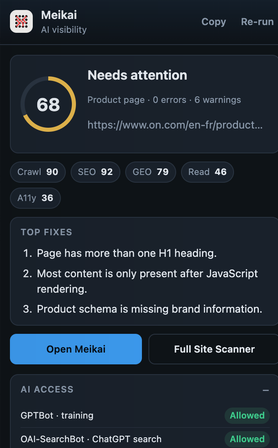
Health starts at 100 and loses 15 points per error, 5 per warning and 2 per notice, so a handful of errors moves the number a long way. The wording next to the ring tells you where you stand: Looking good from 85, Needs attention from 60, and Critical issues below that.
Pillar scores
The chips under the ring score the page by area: Crawl, SEO, Read (readability), A11y (accessibility), and GEO. GEO appears on product pages only. Readability uses Flesch reading ease, which is calibrated for English, so it is left out rather than scored on other languages.
Top fixes
The first screen lists the three most severe issues. Everything else is in the All issues panel, ordered errors first.
Cached results
An audit is kept in Chrome session storage for the tab and reused for about ten minutes, so reopening the popup is instant. Re-run overrides the cache. The cache is dropped when the browser session ends and when the extension updates.
4.What each panel checks
AI access
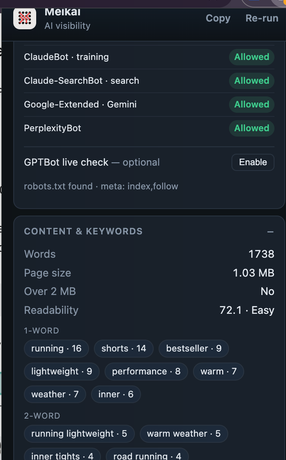
Reads robots.txt from the site and resolves allow or deny for the current path and for the site root. Training crawlers and retrieval fetchers are listed separately, because sites routinely block one and allow the other:
- OpenAI: GPTBot (training), OAI-SearchBot, ChatGPT-User
- Anthropic: ClaudeBot (training), Claude-SearchBot
- Google-Extended
- PerplexityBot
The line below the list reports whether robots.txt was found, plus any meta robots or X-Robots-Tag directive that affects indexing. A file that was never reachable is reported as not readable, which is deliberately not the same as missing.
The same panel holds the optional GPTBot live check. Once you grant access for the site, the extension requests the page once with the GPTBot user agent and reports the HTTP status and whether the response was blocked. That is how you catch a CDN or WAF rule that robots.txt says nothing about. Until then the check reads as optional and nothing else is affected.
Content & keywords
Word count, HTML weight with a flag past 2 MB, readability on English pages, and the most frequent one, two and three-word phrases with navigation and boilerplate filtered out. A thin page or a phrase list that has nothing to do with the topic is usually the first sign that an assistant will summarise the page badly.
Agent discoverability
Probes the site root for the machine-readable files agents look for, and reports whether /llms.txt is a real map or a stub, alongside /llms-full.txt and /AGENTS.md. When /llms.txt exists, the panel also shows its title, whether it has a summary, and how many sections and links it contains. /llm.txt is probed as an alternative filename some sites use. These files matter for agent browsing; they are not a Google Search ranking factor.
Agent vs human
Compares the server response with the rendered page to show what a crawler gets without running JavaScript: HTTP status and response time, raw against rendered word count, and whether the title and JSON-LD are present in the HTML. The verdict separates a page that merely hydrates from a shell that has no content at all, names the hydration payload when it can identify one, recognises a Markdown response served to crawlers, and calls out a bot wall as a different document rather than a rendering problem.
On-page & schema
- Title, meta description, and canonical, including whether the canonical points at this page
- H1 count and heading structure
- Indexability from meta robots and X-Robots-Tag together
- HTTPS and images with no alt text
- The schema.org types found on the page, and JSON-LD that fails to parse
GEO / product (PDP)
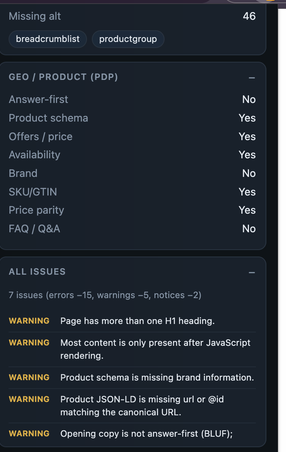
This panel opens only on pages the extension classifies as product pages, from the URL and from Product schema. It checks what a shopping agent needs to quote the product with confidence:
- Product and Offer fields: name, price, currency, availability, brand, SKU or GTIN, image, condition
- Offer completeness across variants
- Whether the product URL in schema agrees with the canonical
- Answer-first copy, FAQ or Q&A blocks, and breadcrumb schema
- Fact density, and whether the visible price and rating match the structured data
All issues
Every finding with its severity, errors first. Codes and wording match the Site Scanner catalogue, so a fix that clears an issue here clears it in a full scan.
Open Meikai and Full Site Scanner
Open Meikai goes to the Meikai app sign-in and Full Site Scanner to the Site Scanner page, both carrying the audited URL so you can continue there. Neither is needed to run or read an audit.
5.Permissions and site access
The extension asks for no site access when you install it. Clicking the icon grants access to that one tab for that visit, which is what the audit runs on.
- Active tab and scripting: read and measure the page you opened the popup on
- Storage: hold the last audit for the tab in session storage
- Optional site access: only for the GPTBot live check, which needs a real host permission before Chrome will let the extension send a crawler user agent
robots.txt and the agent files are requested from inside the audited tab, where they are same-origin, so those checks work without granting anything. The extension does not read pages in the background and never visits a site you did not open.
To withdraw access later, open chrome://extensions, choose Details on Meikai AI Visibility Checker, and set site access back to On click. Removing the extension deletes its cached audits with it.
6.Troubleshooting
The popup shows an error, or stays empty
Reload the tab and open the popup again; Try again in the error state repeats the audit. A page that Chrome protects from extensions, such as a chrome:// page or the Web Store, cannot be audited at all. If the message mentions an outdated build, reload the extension from chrome://extensions or reinstall it from the Web Store.
robots.txt or the agent files look wrong
Check which wording you got. Missing means the site answered and the file is not there. Not readable means the request never completed, which a proxy, a strict content security policy, or a dropped connection can cause. Re-run before you change anything in production robots rules.
The GPTBot live check still asks to enable
Click Enable in the AI access panel and accept the Chrome prompt; the audit re-runs by itself once permission is granted. If no prompt appears, Chrome may be blocking permission requests for that site, in which case grant access from chrome://extensions instead.
The GEO / product panel is not there
The page was not classified as a product page. If it is one, send us the URL and whether Product schema is present in the source, and we will look at the classification.
7.Questions we get
Where can I download the extension?
From the Chrome Web Store: search for Meikai AI Visibility Checker, or open the listing linked on this page.
Is the extension free?
Yes. The audit is free and does not require a Meikai account or a trial.
Does page content leave my browser?
No. The audit is computed in the browser from the tab you opened and the public files on that site. The Open Meikai and Full Site Scanner buttons are the only things that navigate to Meikai, and only when you click them.
Which browsers are supported?
Google Chrome on desktop. Other Chromium browsers generally load the extension, but we only test and support Chrome.
Can I audit a staging or intranet page?
Yes, as long as the page is served over http or https and your browser can reach it. Checks that read robots.txt or agent files need that origin to answer the request, so a locked-down environment may report them as not readable.
Why do the scores differ from Meikai Site Scanner?
The extension grades one page from what your browser can see. Site Scanner crawls the whole site, renders pages remotely, keeps history, and aggregates scores across properties, so its view is broader.
8.Not covered by the extension
- Site-wide crawling, sitemap inventory, and aggregate site scores
- Remote rendering of many URLs
- Audit history and trends over time
- Brand visibility, citation tracking, and the rest of the Meikai platform
Those belong to Site Scanner and the enterprise GEO platform.
9.Privacy and legal
What the extension reads and stores is set out in the extension privacy policy. Our websites and platform are covered by the Privacy Policy, with every document listed in the legal hub.
10.Publisher
Meikai AI Visibility Checker is published by Meikai, www.meikai.ai. Download: Chrome Web Store. Support: support@meikai.ai.